Portfolio
 What is portfolio planning?
Portfolio planning enables you to:
- Identify the goals, strategies, and tactics to maximize revenue growth
- Develop collaborative, cross-function teams and plans to distribute the work and maximize efficiency
- Drive consistent planning, execution, and performance monitoring
- Get quick access to the information with the most impact on you from your dashboard
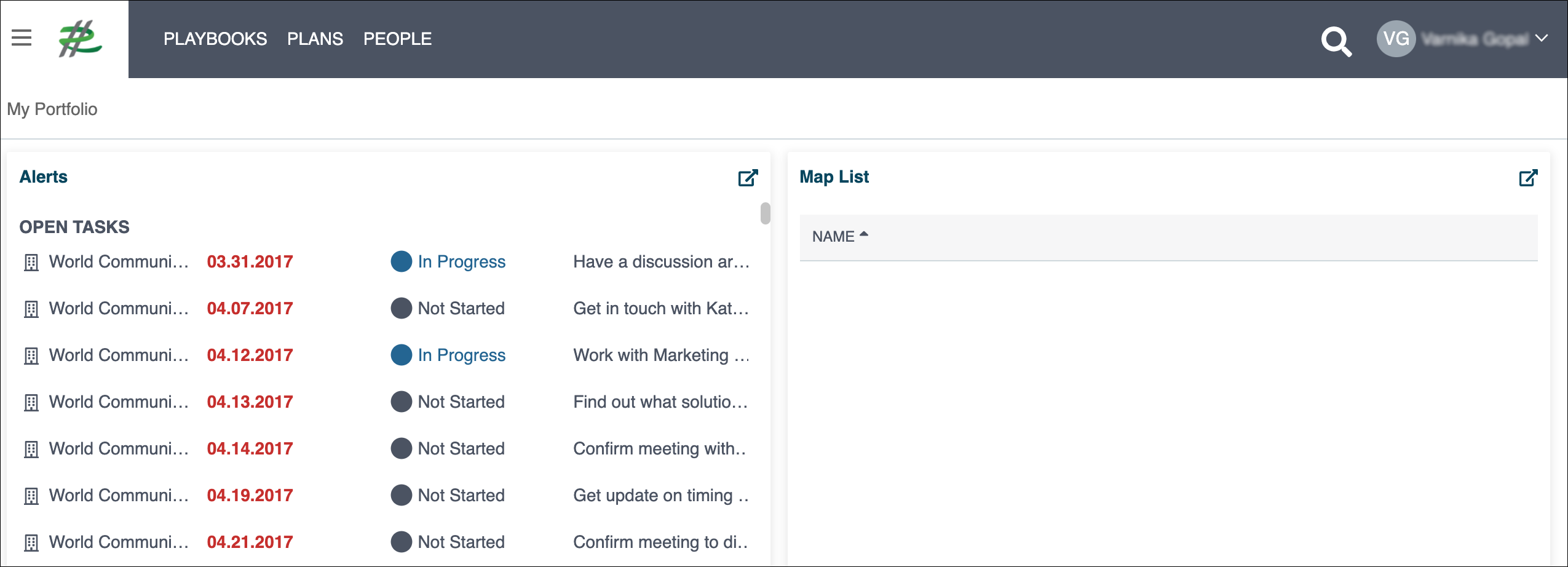
How to view your portfolio dashboard
You can access your portfolio dashboard at any time through the left collapsible sidebar in Revegy (standalone).
- (standalone) Expand the left sidebar.
-
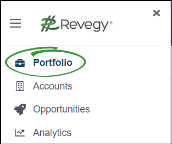
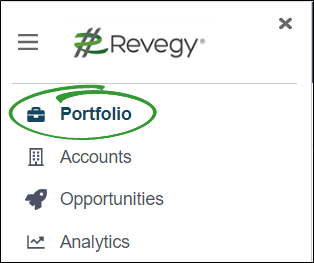
Click Portfolio. Your link may be named differently. Your dashboard opens.
How to view another user's portfolio
You can access another user's portfolio dashboard at any time through the left collapsible sidebar in Revegy (standalone). You must be in the same administrative user group as another user to view their dashboard, and you cannot change another user's dashboard layout.
- (standalone) Expand the left sidebar.
-
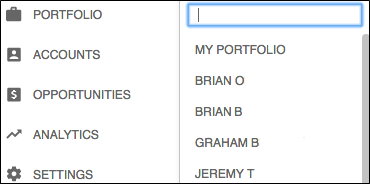
Hover over Portfolio. The portfolio user menu opens.
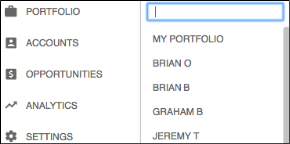
- Search for a user in the top search bar, or scroll through the user list to find a specific user.
-
Click the name of a user in the list. The user's portfolio dashboard opens, and their name appears at the top of the dashboard. Revegy will display the user's tasks that are due within the next five (5) days.
- View and edit any widgets as needed.
How to customize your dashboard
You have the ability to customize your dashboard, or overview page, with widgets, that provide you with a quick glance of your portfolio information. Several available widgets allow you to edit information directly from your dashboard. In Revegy (standalone), the left collapsible sidebar is used. In Revegy (embedded), hover over the gear icon ( ) to customize your overview.
- (standalone) Expand the left sidebar.
-
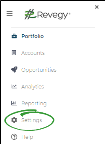
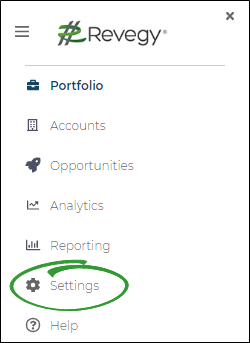
Click Settings.
-
Click Customize Overview. The "Customize Portfolio Overview" pop-up opens.

Note: If this option is unavailable, then a Revegy administrator has your dashboard locked, and it cannot be updated. -
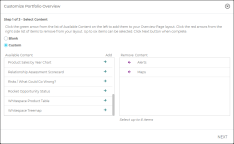
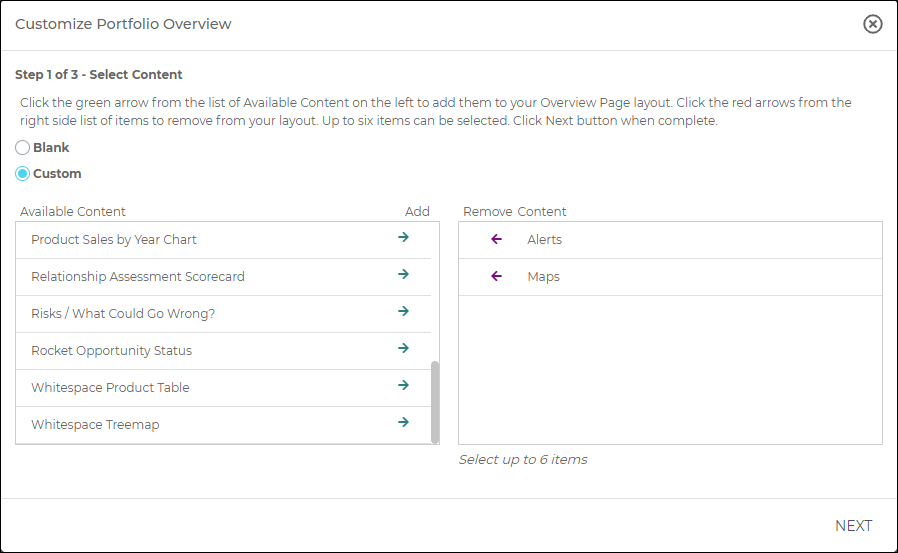
Complete "Step 1 of 3 - Select Content," then click Next.
- Select "Blank" to clear all widgets from the dashboard, or select "Custom" to add widgets.
- (Custom only) Use the green arrows in the "Add" column to add two to six widgets. Use the purple arrows in the "Remove" column to remove widgets.
-
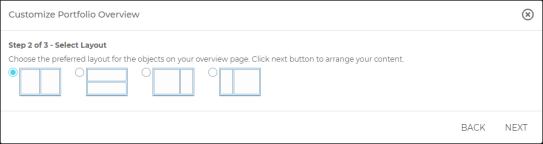
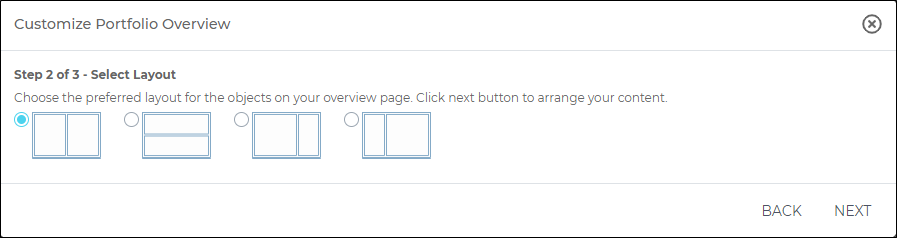
(Custom only) Complete "Step 2 of 3 - Select Layout" by selecting a layout for your widgets, then click Next.
-
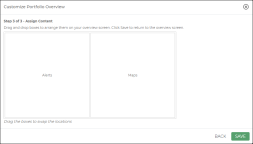
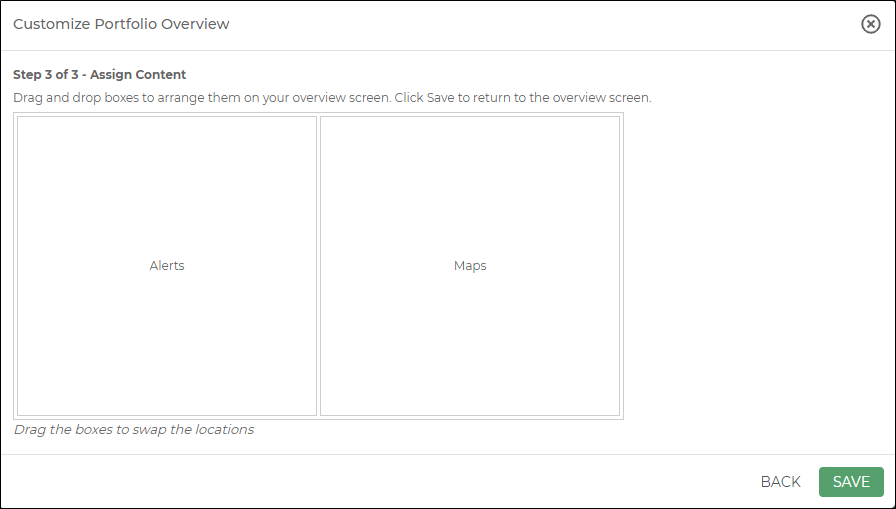
(Custom only) Complete "Step 3 of 3 - Assign Content" by dragging and dropping widget titles to the desired location within your selected layout.
-
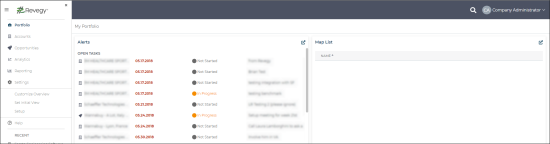
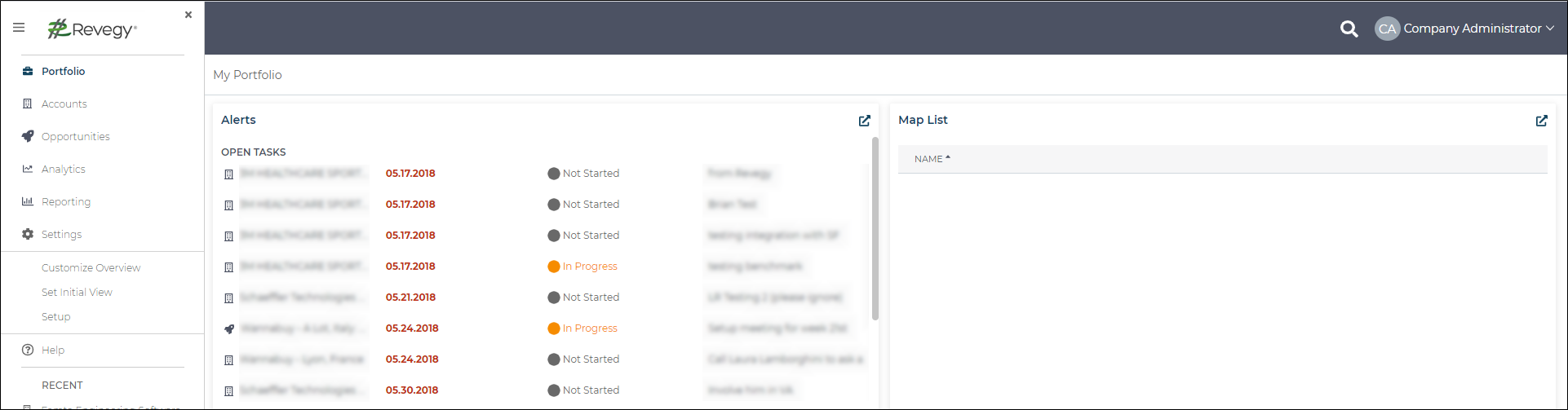
Click Save. Your dashboard reloads with your new changes.
What are some example widgets?
Widgets are placed on your dashboard to allow you quick access to information most important to you.
Alerts widget
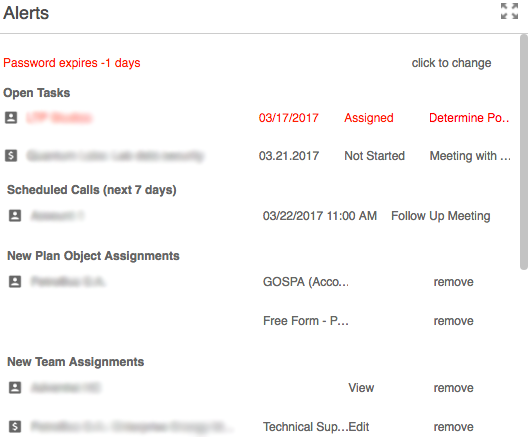
The alerts widget displays:
- Open tasks
- Scheduled calls (open call plans)
- When specific plan objects are assigned to you
- When you are added to a record as a team member
- If your password is expiring soon
Click each item to open the specific accounts and opportunities. Click "remove" for plan object and team member assignments to remove the alert from the widget. Your permissions are not changed.
Map, plan, and call plan list widgets
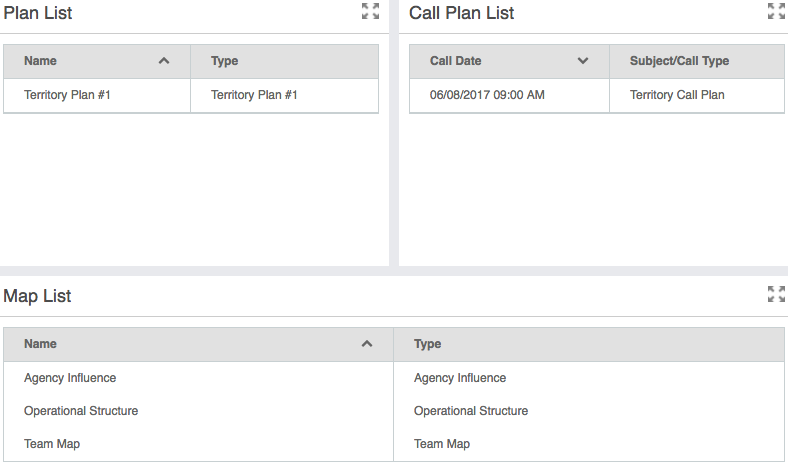
The map, plan, and call plan list widgets display a list of all portfolio maps, plans, and call plans. Click each tool to open it.
Grid/Scorecard widget
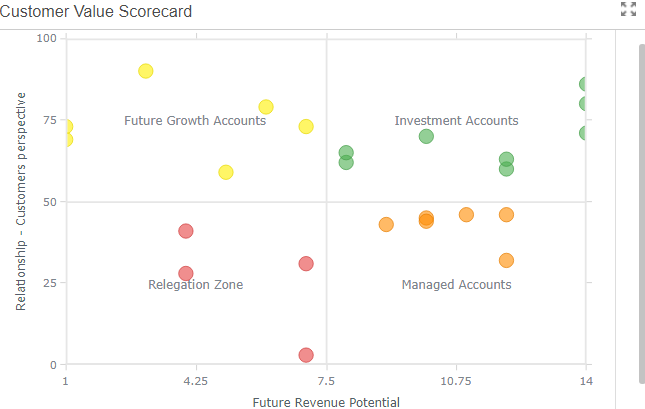
The grid/scorecard widget allows to you select specific grid or scorecard configuration to display and edit on your dashboard. If you select an account or opportunity grid or scorecard, then the widget summarizes the scores for all matching grids or scorecards.
How to set an initial view
You have the ability to set an initial view that opens first when you open your portfolio dashboard. You may set the initial view to open directly to a playbook, map, or a plan. These tools may be edited from this view. In Revegy (standalone), the left collapsible sidebar is used. In Revegy (embedded), hover over the gear icon () to set the initial view.
- (standalone) Expand the left sidebar.
-
Click Settings.
-
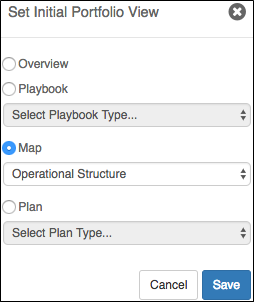
Click Set Initial View. The "Set Initial Portfolio View" pop-up opens.
Note: If this option is unavailable, then a Revegy administrator has your dashboard locked, and it cannot be updated. -
Select "Playbook," "Map," or "Plan."
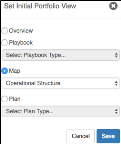
- Select a specific playbook, map, or plan to open whenever you initially open your portfolio dashboard. If you select a tool that has not been created yet, the tool is created when you save.
-
Click Save. The selected tool is opened.
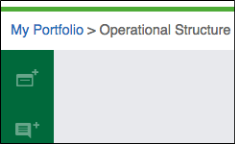
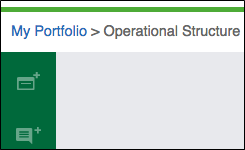
Select "My Portfolio" to return to your widget dashboard. To reset the initial view to your widget dashboard, select "Overview" in the "Set Initial Portfolio View" pop-up.
Related Topics