Navigate Revegy
Watch our Overall Navigation video for a quick walk-through on how to navigate Revegy.
 How to globally search for accounts and opportunities
-
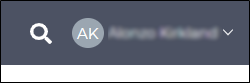
Click the magnifying glass in the top right corner of Revegy next to your name.
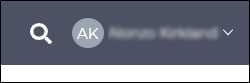
-
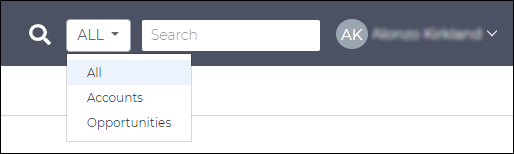
(optional) Select an option from the drop down list beside the magnifying glass to narrow your search to a specific record type.
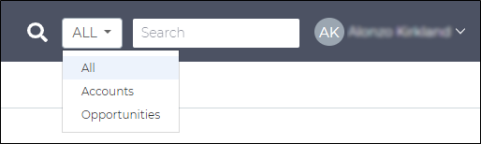
- In the search window, type characters (minimum 2) from the account/opportunity name. Press Enter.
-
Select a record from the search results to open it.


How to expand and collapse the left sidebar
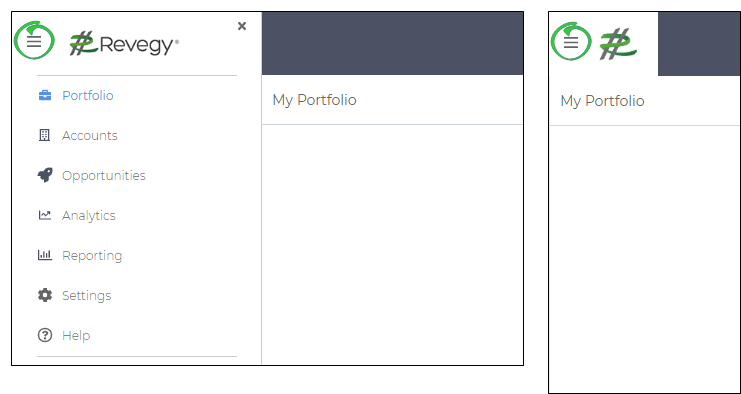
The left collapsible sidebar allows you to access your portfolio or home page, accounts, opportunities, analytics, reports, settings, and help. You can also access your recently viewed records and create new records.
|
|
Note: The left collapsible sidebar is a feature available in Revegy (standalone) only. For Revegy (embedded), Accounts,
Opportunities, and Reports are accessed through tabs or links within your CRM. Portfolio/Overview settings can be changed by hovering over
the gear icon ( ) and selecting "Customize Overview." ) and selecting "Customize Overview."
|

Click the hamburger icon next to your company logo to expand and collapse the left sidebar. This menu is always accessible in Revegy (standalone).
How to open your portfolio overview
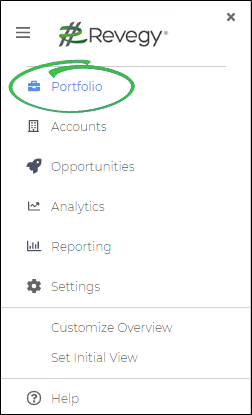
You can access your portfolio overview at any time through the left collapsible sidebar in Revegy (standalone). If Revegy is embedded in your CRM, your initial overview will be set by your Revegy Admin.
- Expand the left sidebar.
-
Click Portfolio. Your link may be named differently. Your overview opens.
How to open the accounts list
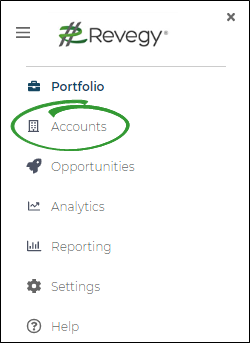
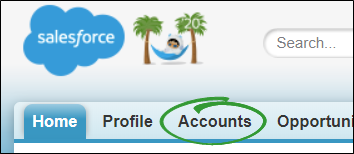
You can access the main account list at any time through the left collapsible sidebar (Revegy standalone) or by selecting a tab or link (Revegy embedded).
In Revegy standalone:
- Expand the left sidebar.
-
Click Accounts. The main account list opens.
Example of Revegy embedded in Salesforce:
How to open the opportunities list
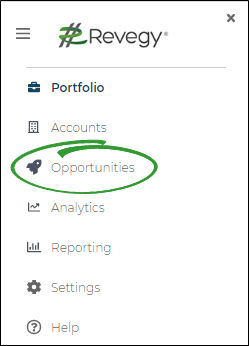
You can access the main opportunities list at any time through the left collapsible sidebar (Revegy standalone) or by selecting a tab or link (Revegy embedded).
In Revegy standalone:
- Expand the left sidebar.
-
Click Opportunities. The main opportunity list opens.
 How to open analytics
In the CRM, users can click on Revegy Analytics to open Revegy Analytics
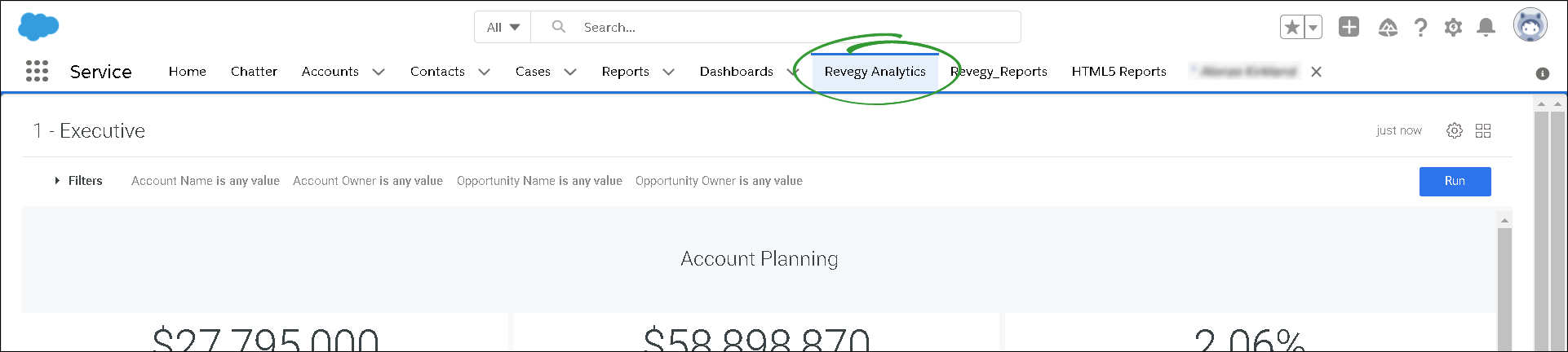
In standalone, or in Full Revegy in SFDC, users can click on Analytics to open Revegy Analytics

How to open settings
From the "Settings" option, you can customize your dashboard overviews, set initial views, and access additional personal system settings.
Standalone
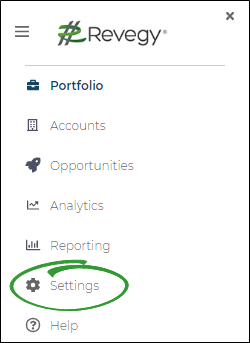
- Expand the left sidebar.
-
Click Settings. The Settings menu opens. Opens vary depending on which Revegy page you are currently viewing.
Embedded
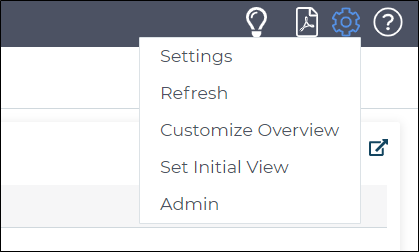
Hover over the gear icon in the top corner of Revegy.
How to view the help, best practices, and privacy policy
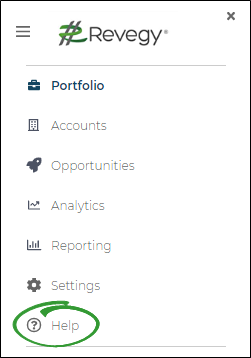
From the "Help" option, you can view online help documentation for Revegy, best practices for Revegy, and the privacy policy.
Standalone
- Expand the left sidebar.
-
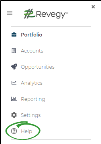
Click Help. The Help menu opens.
Embedded
In embedded, you can currently only view the help documentation.
-
Hover over the question mark icon in the top corner of Revegy.
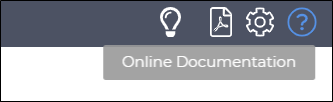
- Click Online Documentation.
How to view recently opened accounts and opportunities
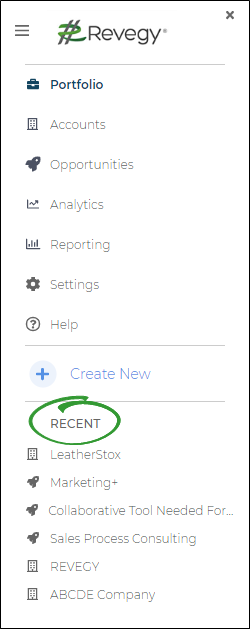
You can access recently viewed accounts and opportunities at any time through the left collapsible sidebar.
- Expand the left sidebar.
-
Scroll to the "Recent" section.
- Click a recently viewed record to reopen.
Related Topics